
How to Add Stripe Payments to Lovable
 Rob30 August 2026
To add Stripe payments to a Lovable app, ask Lovable to add payments, choose built-in Stripe when it fits your product, then ask Lovable to create your products and prices. Test in preview with test cards. Before charging real customers, claim the Stripe account Lovable created, complete Stripe onboarding and pass the readiness check.
Before you begin
You need a project on a plan that includes built-in payments (Pro or higher at the time of writing) and owner or admin access. Add accounts first if purchases must belong to individual users. For a new project, Join Lovable. Do not paste a Stripe secret key into chat; built-in payments manage provider keys for you.
1. Describe exactly what you sell
Write the product name, price, currency, billing interval and what the buyer receives. Lovable may recommend Stripe or Paddle based on your product and country. Built-in payments are designed for digital products and software; physical goods need separate inventory and delivery handling.
Add built-in payments for a one-time “Starter template pack”. Signed-in buyers should receive access after a confirmed payment, not just after clicking checkout. Use the provider you recommend for this digital product and explain why before enabling. Do not ask me for a Stripe secret key.
2. Enable payments and create products
Review the Enable payments dialog, then complete Stripe’s account form. Ask Lovable to create products and prices for you, rather than editing them first in Stripe; this helps avoid test and live mismatches.
Tax handling and seller eligibility
Built-in Stripe may provide full compliance handling for eligible digital products in supported seller countries. For unsupported countries or ineligible products, tax calculation and collection do not remove your responsibility for registration, filing and remittance. Review the actual setup, provider fees and country eligibility before selling; do not assume every transaction is covered. Stripe can offer merchant-of-record handling for eligible transactions, so the difference from Paddle is not simply merchant of record versus direct processing.
3. Grant access only from confirmed payment data
Lovable registers webhook endpoints for payment events. Keep those endpoints enabled. Deleting the app endpoint can leave a payment successful while access stays locked. The success page should not be the only proof that someone paid.
4. Test checkout in preview
Preview uses test mode, so real cards will not work and no money is charged. Complete a test purchase, reload the app and check access persists. Cancel a checkout and confirm access is not granted. Use the Payments area’s test/live toggle to inspect test transactions.
5. Go live deliberately
The published app uses live mode only after go-live steps are complete. Claim the Stripe account, finish verification and payouts, and complete Lovable’s readiness check. Test and live data are separate. Products and prices sync during publishing, but discounts do not.
Troubleshooting and FAQs
Payment succeeded but access is locked
Check the payment event history and the app’s purchase records. Ensure the webhook endpoint still exists and ask Lovable to trace the access update.
Should I use the legacy Stripe key integration?
Built-in Stripe is the default path for new payment setups. The separate own-account integration exists for specific older or bring-your-own-key cases. A project cannot use both at once.
Does Lovable guarantee approval?
No. Availability depends on product type, country and provider review.
Official sources and next steps
Read Lovable payments and, only if you need the legacy route, connect your own Stripe account. Check current provider fees before publishing pricing.
Keep learning
How to Add Paddle Payments to a Lovable Application
Use Lovable’s built-in Paddle option for eligible digital products, then test and complete Paddle’s live review.
How to Build a Subscription SaaS With Lovable
Plan accounts, recurring plans, trusted entitlement updates and subscription management for a working SaaS app.
How to Add Email Notifications Using Resend
Connect Resend when you specifically need it, send from a verified domain and test real notification delivery.
A project to explore & remix
 Featured Build video
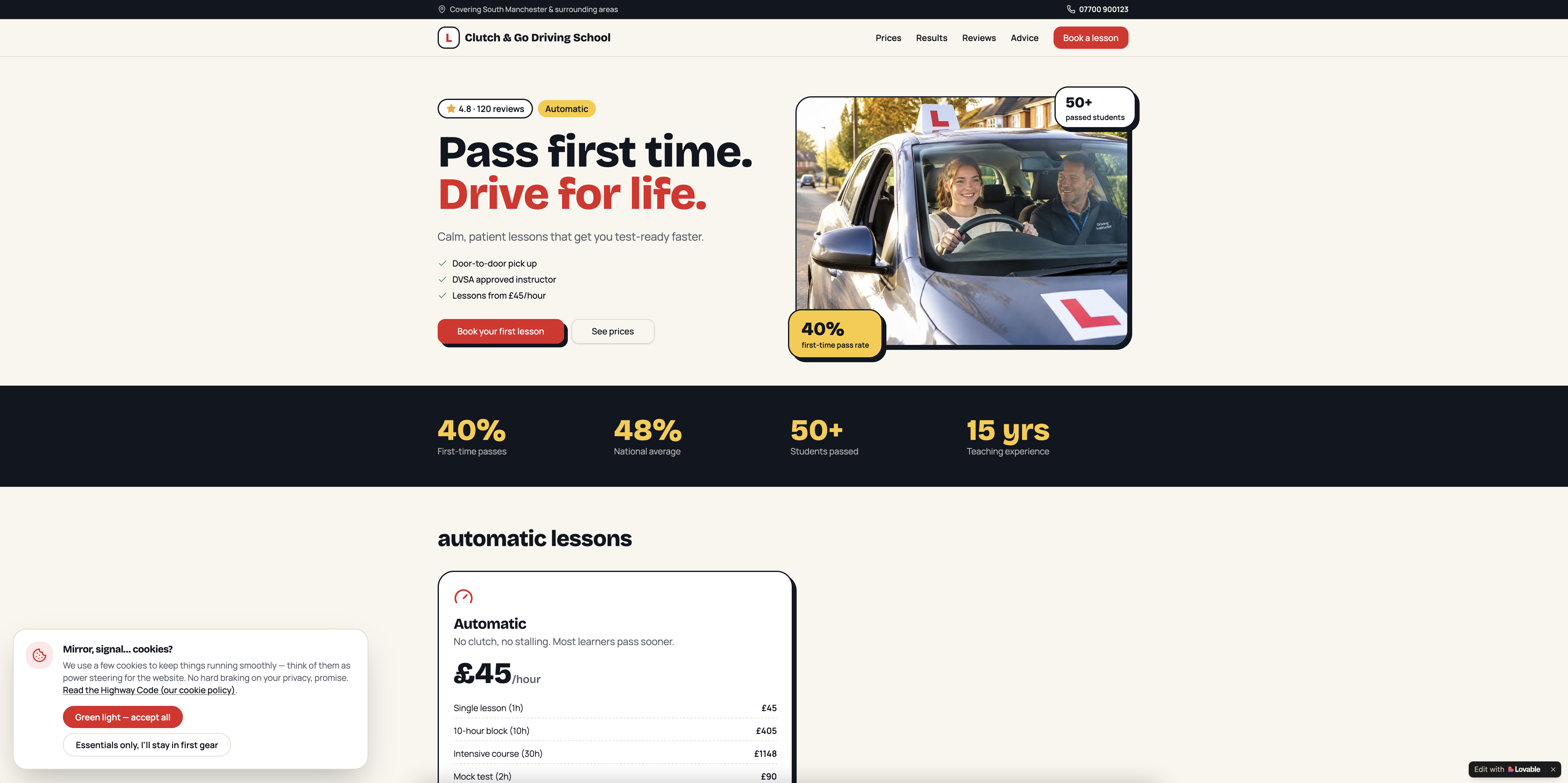
Clutch & Go Driving School - CRM & Website
Get the next write-up
New builds and articles, straight to your inbox.