
Understanding the Lovable Dashboard and Project Editor
 Rob1 October 2026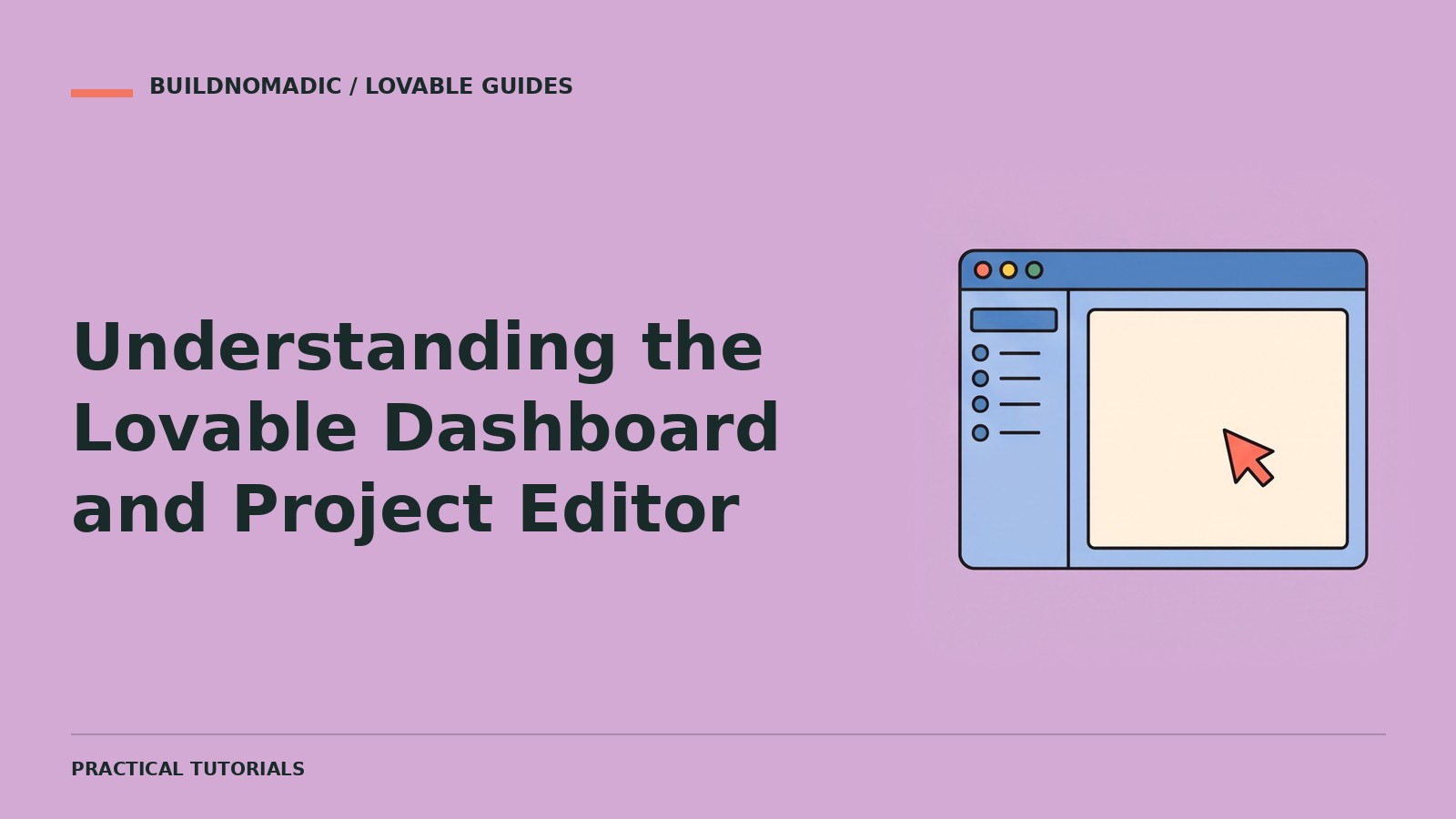
The Lovable Dashboard is where you find and start work. The project editor is where you describe changes, review the app preview and use project controls. On desktop, the documented editor layout places the Chat panel beside Preview. Smaller windows can collapse controls, so use their labels rather than assuming every button is always visible.
Before you start
You need a Lovable account and any project you can open. Join Lovable if you have not started. You will learn what belongs to the workspace, what belongs to a project and how to inspect changes safely.
1. Start on the Dashboard
Use the Dashboard to open existing work or start a project. Check your workspace before creating something for a team. A useful project name describes the product, not merely “test 4”. When locating a project, first check the account and workspace rather than concluding the project was deleted.
2. Open a project and identify the two main areas
The Chat panel holds your instructions and Lovable's responses. Preview displays the current application. A successful chat message is not itself proof that the preview behaves correctly. Read the response, then try the feature in Preview.
3. Choose the appropriate working mode
Use discussion when you want an explanation without changing the app. Use Plan to investigate and agree an approach. Use Build to implement changes. Current official documentation calls the implementation mode Build; older tutorials may call it Agent. Check the available controls in your editor because names and layouts evolve.
4. Inspect the project controls
The editor's top bar provides project controls. Locate the tools you need for your current task, such as code inspection, history or publishing, using their labels. You do not need to manually edit code for the beginner workflow. History is useful when comparing or recovering from a change, but do not assume reverting the interface also reverses external data or service actions.
5. Give a focused editor request
Explain the structure of this project and the main pages. Identify where the primary user action happens and whether it uses saved data. Do not change code. Tell me which parts are only a prototype and which are connected to real services.
Use a non-implementing mode for this inspection. Once you understand the project, make a small specific change rather than rebuilding everything.
6. Distinguish preview from the published site
Preview is your working app inside the editor. Publishing deploys a version people can access at its published address, subject to access settings. An edit in Preview does not update the published version until you publish again.
Verify your understanding
Open the project from the Dashboard, locate the Chat panel and Preview, identify the active mode, then try one real action in the app. Find the published address if the project has been deployed. Compare the two versions before assuming they are identical.
Common sources of confusion
Controls are missing: a narrow window can collapse them. Inspect the available menus or widen the window rather than following a screenshot's pixel position.
The preview looks right but a task fails: inspect the behaviour and error. Generated layout and connected functionality are different concerns.
The live app is behind the preview: publish the tested changes.
A revert did not undo service data: version history is not a universal rollback for external actions. Check the affected data or service separately.
Frequently asked questions
Is the Dashboard part of my app?
No. It belongs to your building environment. Your app's own dashboard is a separate screen you ask Lovable to create.
Must I use the code editor?
Not for the basic prompt-and-preview workflow. Code access can help with inspection or advanced work, but it is not the first step for every beginner.
Will the layout always match a screenshot?
No. The editor changes and adapts to window size. Use current labels and the official guide alongside screenshots.
Official sources
Dashboard overview, project editor, project overview and publishing.
Keep learning
How to Create a Lovable Account and Start Your First Project
Understand account, workspace and project setup, then turn a focused first prompt into a project you can return to.
Lovable Agent Mode vs Plan Mode: What's the Difference?
Older tutorials say Agent mode; current documentation says Build. Learn when to plan, when to implement and how to avoid unwanted changes.
How to Use Lovable: A Step-by-Step Tutorial for Beginners
Go from a clear first prompt to a tested published project, with a repeatable beginner workflow and prompts you can adapt.
Get the next write-up
New builds and articles, straight to your inbox.