
How to Create a Navigation Menu and Footer With Lovable
 Rob21 September 2026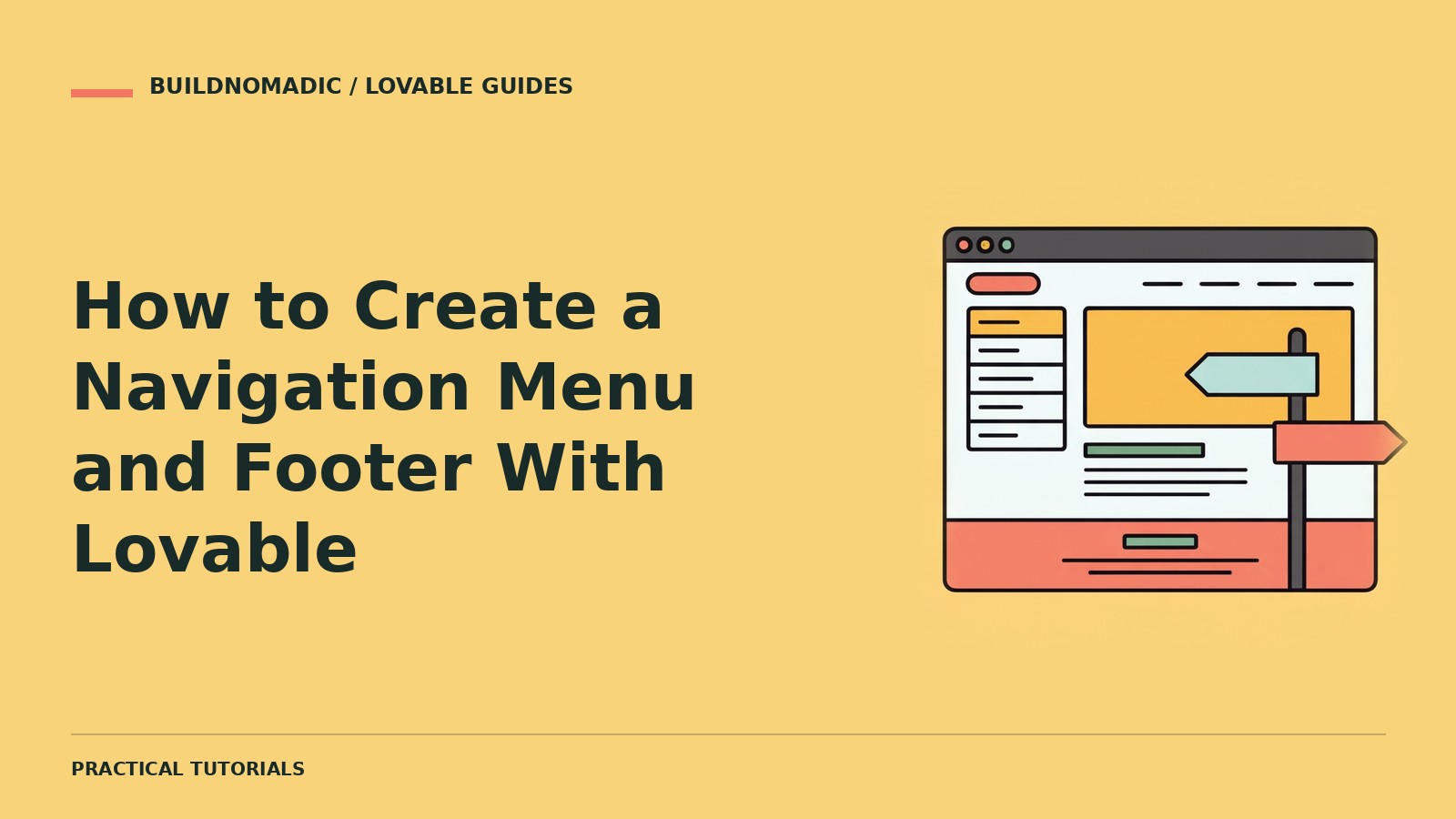
Create navigation and a footer in Lovable by listing real destinations, defining the primary action and requesting a shared layout with a usable mobile menu. Every link should lead somewhere meaningful, and the controls must work by keyboard and touch as well as mouse.
What you will learn and need
You will learn how to organise links, preserve consistent navigation and test smaller screens. Prepare your existing page list, approved social links and any genuine policy or contact pages. Join Lovable if you are starting a project.
1. Choose links based on visitor tasks
Put essential destinations in the main navigation. Keep utility links and relevant policy pages in the footer. Avoid listing every page in the header. Use clear names and distinguish navigation from actions such as submitting a form or signing out.
2. Request a shared layout
Ask Lovable to use the same navigation and footer across the relevant pages. Preserve existing working destinations. If a new page is required, include its content in the change rather than shipping a dead link.
Create shared navigation and a footer for the existing site. Use the current real pages and supplied social URLs. Keep the primary action clear, show the current page and preserve all existing routes. Do not invent contact details or create links to unfinished pages. Plan the mobile behaviour before implementation.
3. Define mobile menu behaviour
Specify how the menu opens, how it closes and what happens when a link is chosen. Essential links must remain reachable when the desktop row no longer fits. Test long labels so links or buttons do not crop or overlap.
4. Make the controls accessible
Use meaningful labels, visible focus and predictable tab order. A menu icon should have an accessible name. Check dismissal, keyboard use and focus behaviour. Avoid actions that appear only on hover.
5. Build a useful footer
Use genuine contact and social links, relevant legal pages and an accurate copyright identity. Do not use empty decorative icons that look clickable. Keep footer content concise and readable on smaller screens.
How to verify the result
Click every header and footer link from more than one page. Open and close the mobile menu, choose a link and repeat by keyboard. Check signed-in and signed-out states where applicable. Confirm labels fit at intermediate widths, not just the largest and smallest previews.
Common errors
- New link leads to a missing page: create the actual destination in the same change.
- Header buttons crop on smaller windows: adapt layout instead of squeezing text.
- Menu stays open after navigation: request explicit close-on-selection behaviour.
- Social icons have no useful labels: add accessible names and real destinations.
Frequently asked questions
Should I use a sticky header?
Only if it helps the workflow and does not hide too much content on small screens.
Can the footer differ on private pages?
Yes where appropriate, but keep deliberate shared rules rather than accidental inconsistency.
Does a menu need a separate page?
No. It is usually part of the shared app layout.
Official sources and next steps
Scoped prompting and Test like a user. This navigation workflow is a recommendation, not a special one-click platform feature. Continue with responsive mobile design.
Keep learning
How to Create a Responsive Mobile Website in Lovable
Adapt layouts, navigation and forms to smaller screens and test the complete mobile experience.
How to Design a Professional Website With Lovable
Create a coherent website around real content, a clear visitor goal and a testable design brief.
How to Build a Dashboard With Lovable
Build a useful dashboard with defined metrics, real data, clear states and verified access rules.
Get the next write-up
New builds and articles, straight to your inbox.