
How to Build a Dashboard With Lovable
 Rob22 September 2026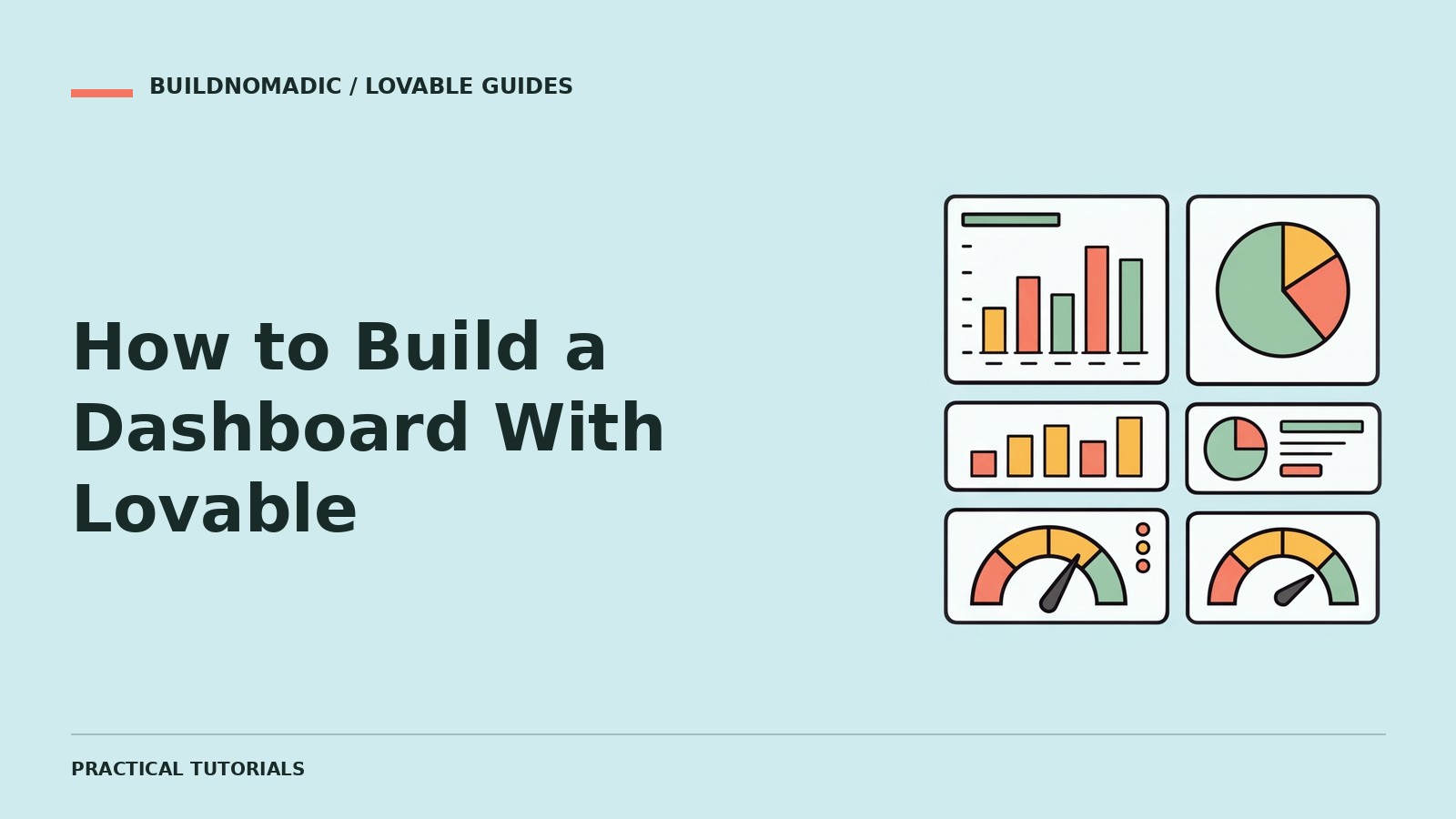
Build a Lovable dashboard by defining the decisions it supports, the data behind each metric and who may see it. Create the main view, connect the data and test filters, permissions and empty states. Charts that display invented totals are a mock-up, not a working business dashboard.
What you will learn and need
You will learn how to define metrics, design useful views and verify the result against records. You need a clear audience, an authorised data source and definitions for totals, dates and statuses. Join Lovable if needed. Lovable supports dashboard development; security still depends on configuration and testing.
1. Define the job and metric definitions
Write down what a user needs to decide. For a booking dashboard, distinguish requests, confirmed bookings and cancellations. Specify the date field used and the time zone. A total should have an explainable source, not just an appealing label.
2. Plan the views and access
Describe the summary, table, filters and detail view. State who can view or change each record. If multiple users or organisations share the app, require separation of private data. Ask Lovable to inspect existing access patterns before introducing new ones.
Plan a bookings dashboard for this app. Show requests and confirmed bookings separately, with a date filter and a record list that explains each total. Use existing data and permissions. Each user must see only authorised records. Include loading, empty and error states. Do not invent statistics or implement before review.
3. Build and label the initial view
If using sample data to explore layout, label it clearly and keep it out of real reported totals. Prioritise scannable records and meaningful comparisons over decorative charts. Make filters and the current date range visible.
4. Connect the actual data
Use the app’s configured data source. Ensure filters affect both totals and detail rows consistently. Surface failures instead of presenting a broken connection as zero activity. A summary and its underlying records should agree.
5. Test with separate authorised users
Create safe test records and verify the correct view for each account. Check that hiding a button does not substitute for actual access control. Test pagination and a larger dataset so totals are not silently based on only the first page.
How to verify the dashboard
Pick a small known set of records and calculate expected totals independently. Compare the summary and filtered rows. Reload after an update and confirm the change persists. Check no-data, service-failure and unauthorised-user states.
Common errors
- Mock totals remain in production: connect real data and remove or clearly label examples.
- Zero shown when a request fails: show an error state, not a false measurement.
- Chart and table disagree: align filters, date definitions and status rules.
- One account sees another’s data: review and test data access outside the interface.
Frequently asked questions
Do I need charts?
Only when they help comparison or trends. A clear table can be more useful.
Can I begin with sample data?
Yes for a clearly labelled prototype, not as claimed business activity.
Does sign-in alone protect a dashboard?
No. Verify the permissions on the actual data and actions.
Official sources and next steps
What you can build, Prompting with the backend in mind and From idea to app. Continue with forms and validation.
Keep learning
How to Add Forms and Validate User Input in Lovable
Build forms with clear rules, secure submission handling and verified saved or delivered results.
How to Design a Professional Website With Lovable
Create a coherent website around real content, a clear visitor goal and a testable design brief.
How to Create a Navigation Menu and Footer With Lovable
Create clear shared navigation and a useful footer that work across pages, keyboards and mobile screens.
Get the next write-up
New builds and articles, straight to your inbox.