
How to Add Forms and Validate User Input in Lovable
 Rob20 September 2026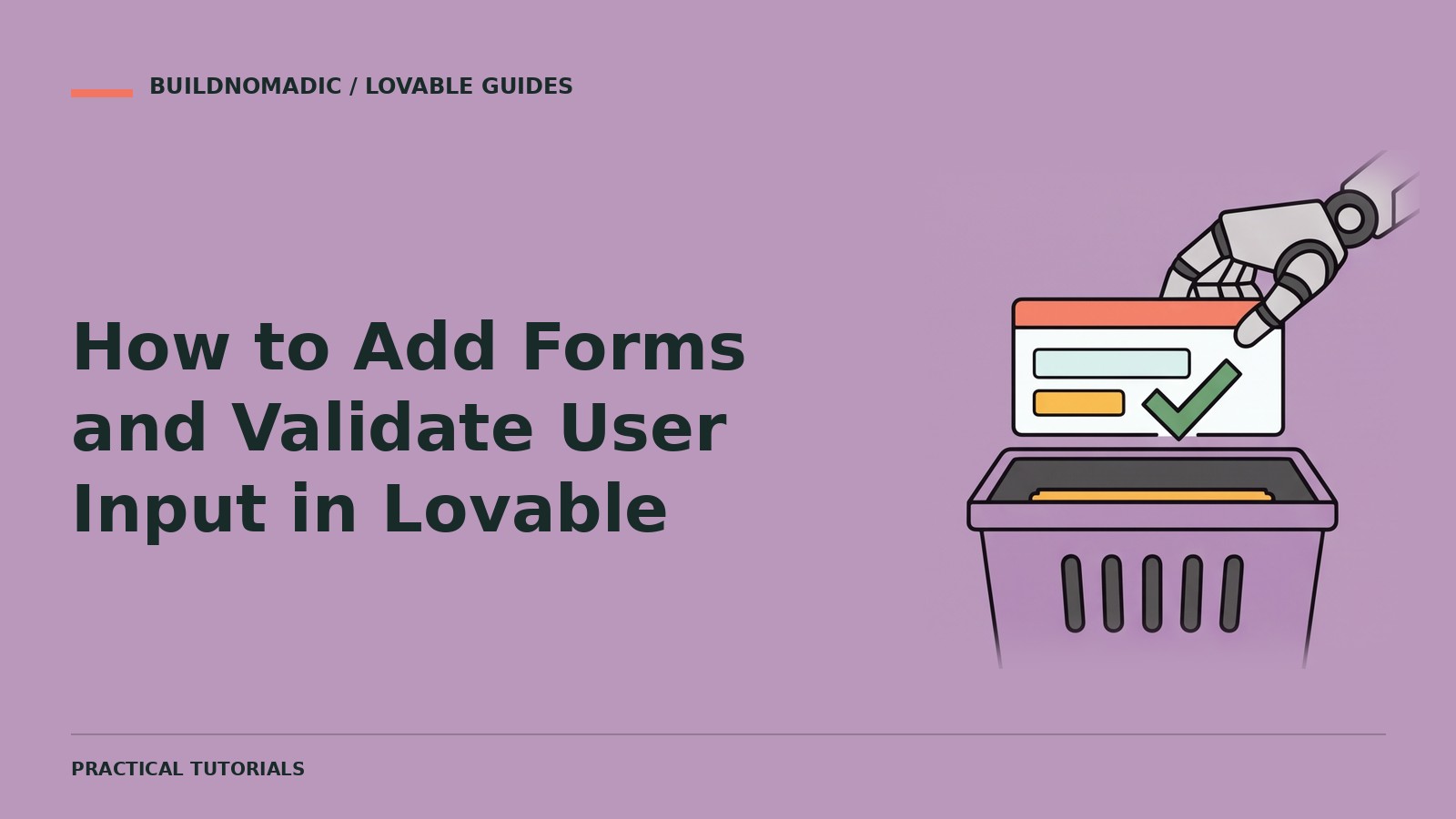
Add a Lovable form by defining its fields, validation rules and submission outcome together. Give immediate field feedback in the browser, but enforce the same important rules when accepting data. A success message should appear only after the intended save or delivery succeeds.
What you will learn and need
You will learn how to define form requirements, handle errors and verify persistence. Decide what information you genuinely need, where it goes and who may read it. Join Lovable if needed. Browser-versus-server validation is an application security principle, not a promise that any generated form is automatically secure.
1. Define the minimum fields and exact rules
For an enquiry form, specify required name, email and message fields, reasonable length limits and whether optional fields are truly needed. State how whitespace and invalid formats should be handled. Do not collect sensitive information without a clear reason and appropriate protections.
2. Define the result and access
Decide whether an enquiry is stored, emailed or both. Explain who can view submissions and what happens if delivery fails. Keep private credentials out of browser code. If the site has existing accounts and permissions, reuse them rather than replacing them for one form.
Plan an enquiry form with name, email and message. Name must contain 1–100 trimmed characters; message 10–2000 trimmed characters; email must be valid. Validate important rules when accepting data, not only in the browser. Only authorised staff may read submissions. Show success only after the save succeeds. Include field errors, submission failure and duplicate-click protection.
3. Build labels and useful errors
Keep labels visible and place an error beside the affected field. Preserve the visitor’s entered content after a failure. Make the submit state clear so repeated clicks do not create accidental duplicates. Avoid vague messages that force users to guess what went wrong.
4. Test the submission boundary
Try missing values, malformed email and input at and beyond each limit. Client-side feedback improves usability; it is not sufficient to protect the acceptance path from direct requests. Ask for validation tests that assert the exact rules you chose.
5. Verify saved data or delivery
Submit safe real input through the app, reload the relevant admin view and read the result back. For email, confirm receipt rather than relying solely on a screen message. Test service failure and unauthorised attempts to read submissions.
Common errors
- Form looks complete but does nothing: specify the storage or delivery outcome.
- Invalid data accepted by direct requests: enforce rules where data is accepted.
- Success appears before saving: tie success to the confirmed result.
- Errors erase the message: preserve entered values and show a retry path.
Frequently asked questions
Is browser validation enough?
No. Important rules and permissions must also be enforced at the submission boundary.
Should I ask for phone numbers?
Only if necessary for the actual workflow; minimise unnecessary personal information.
Does a working email preview prove delivery?
No. Send a safe test and confirm it arrives.
Official sources and next steps
From idea to app: testing forms and Security. The example limits are illustrative choices for this prompt, not Lovable platform limits. Adapt them to your needs and test the values you choose.
Keep learning
How to Build a Dashboard With Lovable
Build a useful dashboard with defined metrics, real data, clear states and verified access rules.
How to Add Custom Fonts, Images and Branding to Lovable
Use approved brand assets, choose fonts deliberately and verify imagery, readability and metadata across your app.

How to Design a Professional Website With Lovable
Create a coherent website around real content, a clear visitor goal and a testable design brief.
Get the next write-up
New builds and articles, straight to your inbox.