
How to Add Custom Fonts, Images and Branding to Lovable
 Rob19 September 2026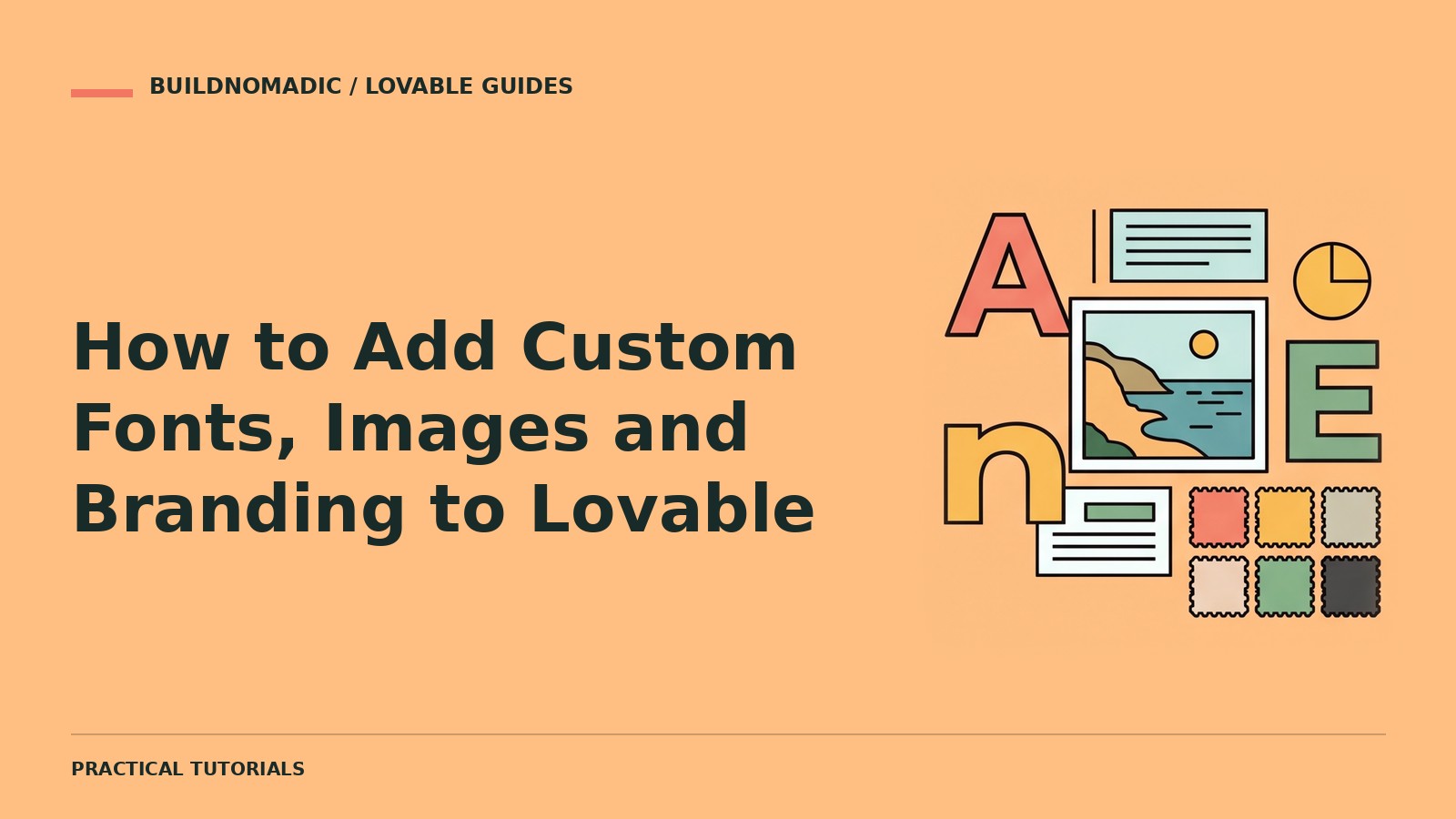
Add branding to Lovable by supplying approved assets and naming the fonts and visual rules you want. You can request a web-safe or Google Font in a prompt, and use the preview toolbar to target an image and attach a replacement. Custom font files use a different documented workflow from choosing a hosted font.
What you will learn and need
You will learn how to prepare assets, request consistent typography and replace images without breaking layout. Gather your approved logo, licensed images, brand colours and font choices. Join Lovable if needed. Ensure licences permit web use, including any font files you provide.
1. Prepare a useful asset brief
Explain which logo version suits dark and light backgrounds and which images belong on each page. Use filenames or attachments that clearly identify assets. Provide original content rather than asking Lovable to invent business claims.
2. Specify hosted or web-safe fonts
Name the font and where it should apply: headings, body copy or a specialised role. Include a sensible fallback and request only the weights you need. Check readability with long headings, numbers and form labels rather than judging a short sample alone.
Apply [chosen font] to headings and [chosen body font] to body content, using appropriate fallbacks and only required weights. Preserve readable sizes, clear hierarchy and existing functionality. Check long headings, forms and mobile layouts. Use my supplied brand assets instead of inventing logos or business details.
3. Follow the separate custom-font-file workflow
The official custom-font guide says there is no dedicated font-file upload feature. To use your own font files, add them to your repository through Git sync and ask Lovable to use them. Do not assume attaching a font in chat is the same supported workflow. If that process is unfamiliar, a licensed hosted font can be a simpler starting point.
4. Replace images precisely
Select an image in the current preview toolbar and attach a replacement or provide its URL. Explain the intended crop and purpose. Prefer real product, people or work imagery where readers need to inspect the subject. Give informative images useful descriptions and avoid hiding important details with unsuitable cropping.
5. Apply branding beyond the homepage
Review logos, navigation, forms, page metadata, favicons and social previews. Connected provider branding or email sender settings may live outside the app and need separate review. Keep contrast and interaction states readable after applying colours.
How to verify the assets
Reload and confirm images and fonts load. Inspect mobile crops and fallback behaviour. Check every public page for old branding and verify the actual page title and sharing description. Confirm the files you publish are licensed and contain no private information.
Common errors
- Uploaded font not applied: follow the documented repository workflow for custom font files.
- Large image crops the subject: specify the intended crop and responsive behaviour.
- Different fonts appear inconsistently: define shared typography roles.
- Old brand remains in provider screens: review that provider’s own settings separately.
Frequently asked questions
Can I use a Google Font?
Yes. Name it in your prompt and verify loading and readability.
Is there a dedicated custom font upload control?
The official guide says no; custom font files use the repository/Git-sync workflow.
Can I use any image URL I find?
No. Use assets you are authorised to publish and consider reliable hosting.
Official sources and next steps
Custom fonts, Preview toolbar and Prompting best practices. Continue with consistent design systems.
Keep learning
How to Add Forms and Validate User Input in Lovable
Build forms with clear rules, secure submission handling and verified saved or delivered results.
How to Create a Navigation Menu and Footer With Lovable
Create clear shared navigation and a useful footer that work across pages, keyboards and mobile screens.
How to Use Visual Edits in Lovable
Use the current preview toolbar to select elements, edit text and explain visual changes precisely.
Get the next write-up
New builds and articles, straight to your inbox.