
How to Create a Responsive Mobile Website in Lovable
 Rob23 September 2026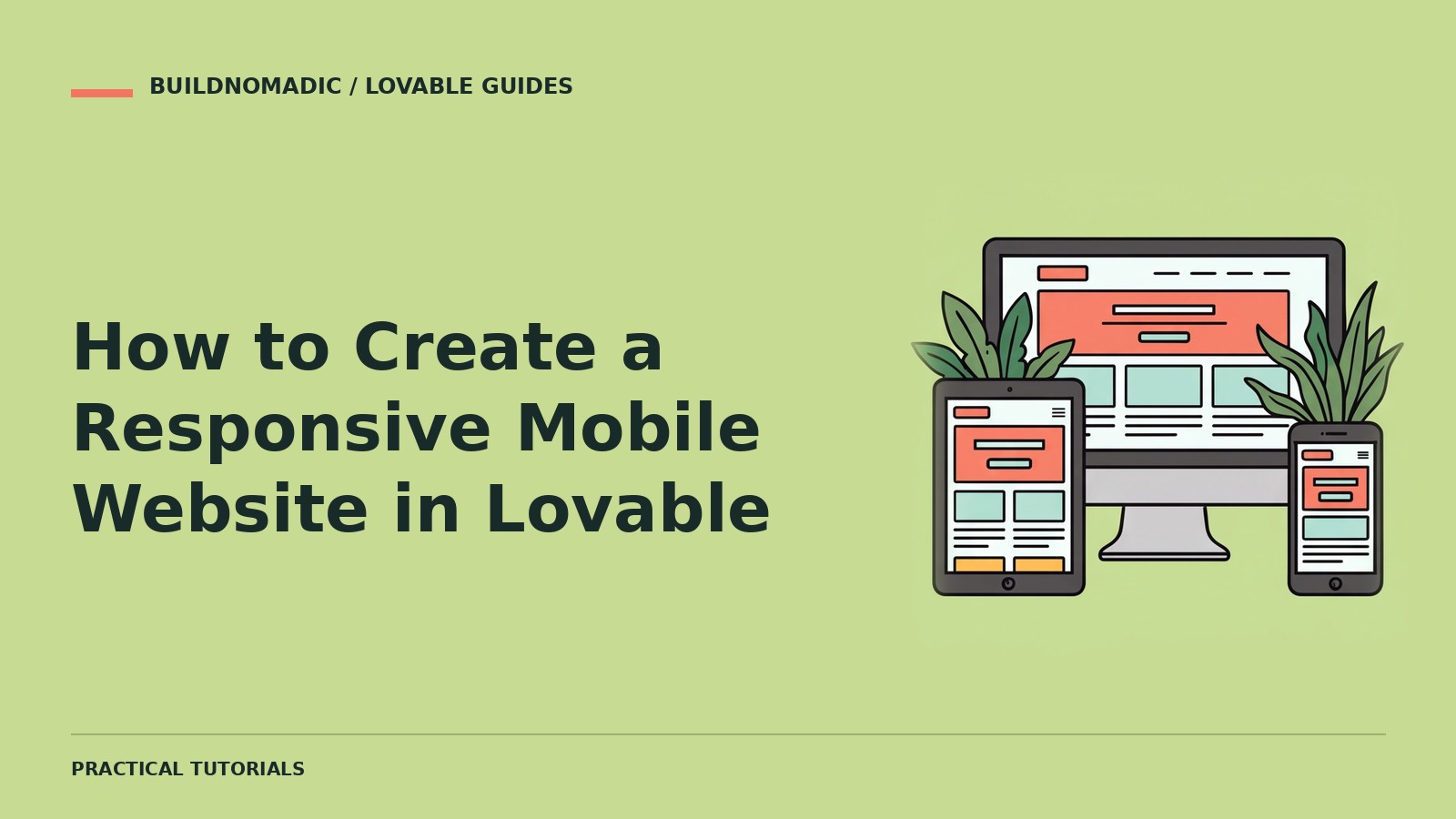
Create a responsive Lovable website by specifying how content should rearrange on smaller screens, checking Desktop, Tablet and Mobile previews and testing the important workflows on a real phone. A smaller preview helps reveal problems; it does not prove the site works on every device.
What you will learn and need
You will learn to check layouts, long text, touch controls and forms across sizes. You need an existing project and realistic content, including the longest headings and labels you expect. Join Lovable if you still need an account.
1. Define mobile priorities
Decide what must remain visible first: the page title, primary action and essential content. Describe how grids should become fewer columns and how navigation should work when space runs out. Avoid shrinking every desktop element until it becomes unreadable.
Review this site for small screens. Keep the main task and content readable. Let grids reduce columns, allow long headings to wrap and adapt the navigation without hiding essential links. Preserve the desktop design and existing functionality. Identify problems before changing them.
2. Use the preview device toggle
Above the preview, use the device toggle to switch among Desktop, Tablet and Mobile. Visit every important page, not only the homepage. Inspect empty states, menus, dialogs and the signed-in experience where applicable.
3. Fix content overflow at its source
Look for wide tables, unbroken URLs, fixed-width images and controls that refuse to wrap. Describe the specific issue and affected screen. Tables may need a dedicated scrolling area or a mobile representation; hiding important columns is not automatically the right answer.
4. Make controls usable by touch
Check that the menu opens and closes, controls are comfortably separated and actions do not rely only on hover. Forms need readable labels, helpful error text and input behaviour appropriate to their purpose. Keep the submission result visible when the phone keyboard closes.
Fix the mobile enquiry form only. Prevent horizontal overflow, keep labels and errors readable and ensure the submit button remains usable. Preserve validation and delivery behaviour. Test a valid submission, a missing required value and a long message.
5. Test intermediate widths and a real device
A layout may look fine at preset sizes but break between them. Resize the preview where possible and test portrait and landscape on your phone. Review image loading and layout movement on a slower connection too.
How to verify it works
Complete the main visitor task on mobile from a fresh session. Confirm no essential text is cropped, the page does not scroll sideways unexpectedly and menus or dialogs can be dismissed. Verify the saved or delivered result, not just the button animation.
Common errors
- Desktop layout simply shrinks: request content rearrangement rather than tiny text.
- Long title breaks the page: test actual longest content and allow wrapping.
- Hover-only action cannot be used: provide a visible touch-friendly action.
- Phone preview passes but keyboard obscures a form: test the real input flow on a phone.
Frequently asked questions
Does responsive mean separate mobile and desktop sites?
Usually no. One site adapts its layout to available space.
Is Mobile preview enough?
It is useful, but real-device and intermediate-width testing catches additional issues.
Should all tables become cards?
Only if that preserves the task and information users need; choose based on the data.
Official sources and next steps
Preview controls and Test like a user. Continue with navigation and footers.
Keep learning
How to Create a Navigation Menu and Footer With Lovable
Create clear shared navigation and a useful footer that work across pages, keyboards and mobile screens.
How to Create Consistent Designs Using Lovable Design Systems
Understand reusable workspace design systems, release and selection, and how to test consistency across projects.
How to Design a Professional Website With Lovable
Create a coherent website around real content, a clear visitor goal and a testable design brief.
Get the next write-up
New builds and articles, straight to your inbox.